Integration setup
This page walks through getting an API key and wiring up webhooks.
1. Get an API key
In the HugeProfit interface, open Settings → Integrations → Other → API v2 and press Connect. Keys are managed by the account administrator; you can create several keys — one per connected system.
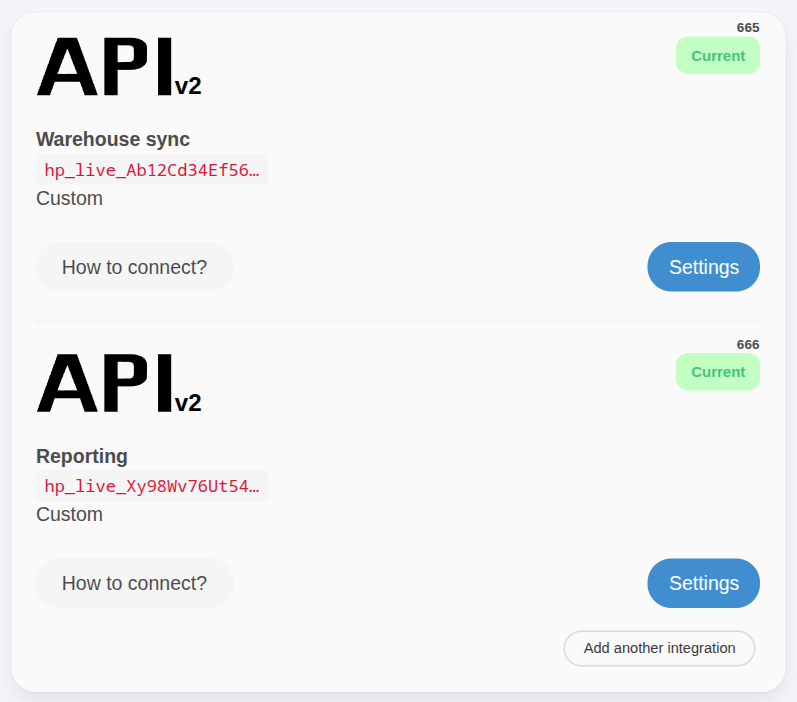
- Give the key a name (e.g. "Warehouse sync").
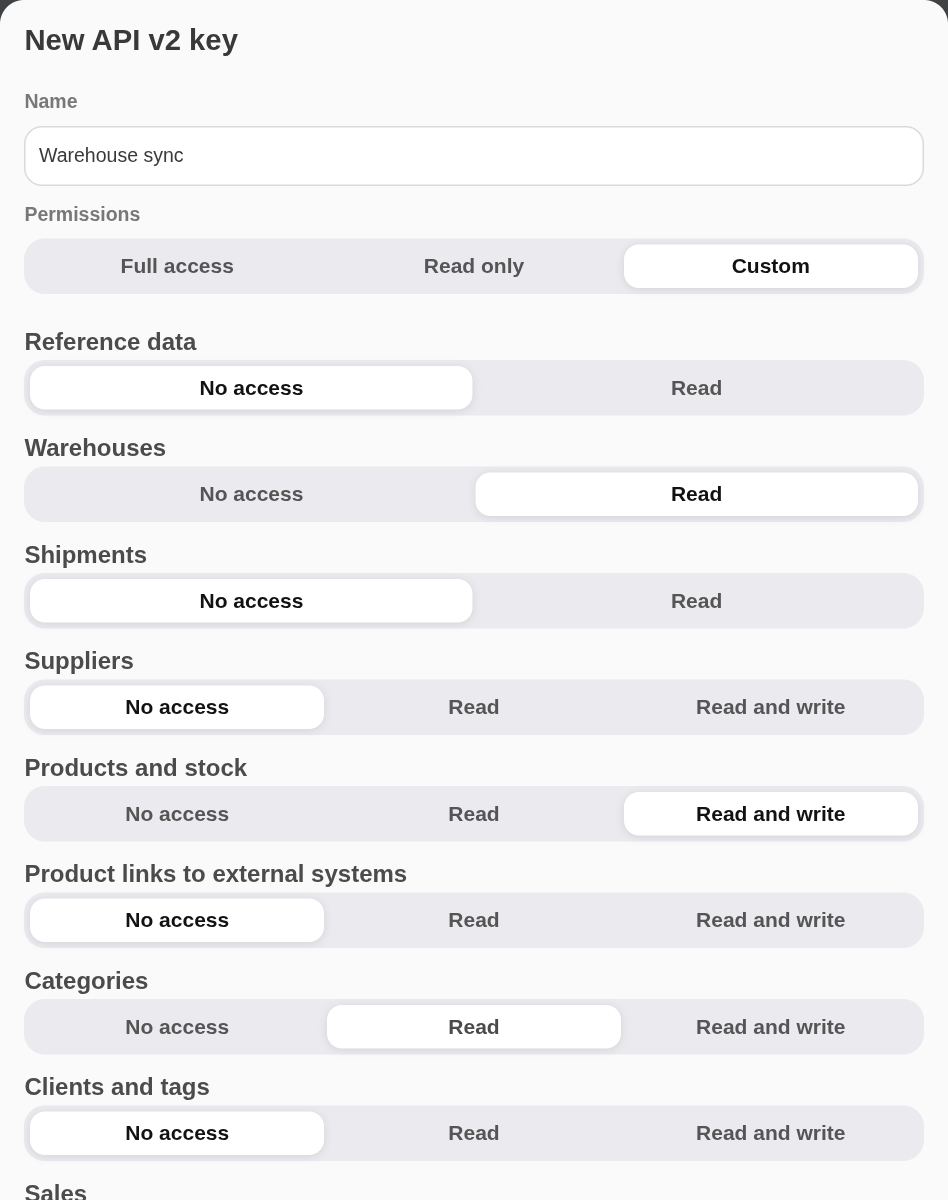
- Choose its permissions — grant only what the integration needs (see step 2).
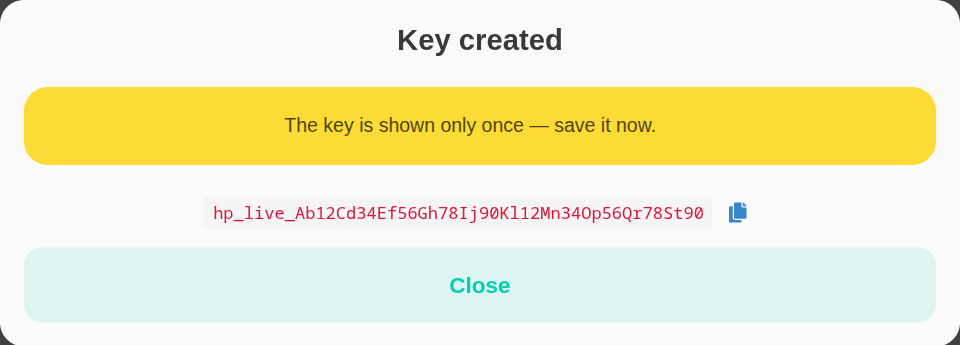
- Copy the key immediately — it is shown only once (
hp_live_…). The list shows only its beginning.
- Lost it? Regenerate the key in its settings: you get a new one, the old stops working within 30 seconds, while webhooks and orders received through the key stay in place.
- Deactivate a key to pause it: requests are rejected within 30 seconds and its webhooks are not sent. Deleting a key also deletes its webhooks with their delivery log.
Verify it works:
A 200 with your user_id and scopes means you're ready.
2. Choose permissions
In the key form there are three options:
| Option | Scopes it grants |
|---|---|
| Full access | * — every resource, read and write |
| Read only | <resource>:read for every resource |
| Custom | per resource: no access, read (<resource>:read) or read and write (<resource>:*) |
Through the API scopes are resource:action (read/write); :write alone does not grant read.
Grant the minimum: a reporting integration needs sales:read, products:read, clients:read, …;
a two-way sync needs resource:*. Permission changes take effect within 30 seconds.
Full list — in Authentication.
3. Create a webhook subscription
You can create webhooks in the key's settings (Settings → Integrations → API v2 → Settings → Webhooks → Add webhook) or via the API:
curl -X POST https://crm.h-profit.com/bapi-v2/webhooks \
  -H "Authorization: hp_live_your_key_here" \
  -H "Content-Type: application/json" \
  -d '{ "event": "order_create", "url": "https://yoursite.com/hooks/sales" }'
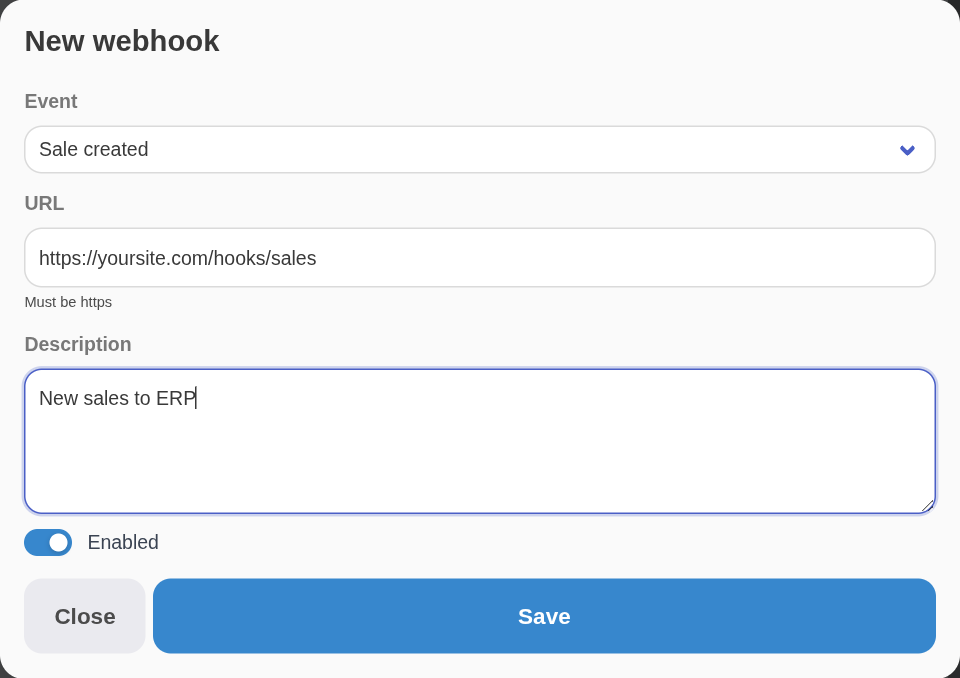
- Pick an event from the catalog.
- Set your receiver URL (must be reachable over HTTPS).
- Save the returned
secret— you need it to verify signatures. Like the key, it is shown only once; you can issue a new one in the subscription settings.
4. Test the endpoint
Before relying on live events, fire a sample delivery: press Test next to the subscription in the key settings, or call the API:
curl -X POST https://crm.h-profit.com/bapi-v2/webhooks/test \
  -H "Authorization: hp_live_your_key_here" \
  -H "Content-Type: application/json" \
  -d '{ "webhook_id": 5, "data": { "ping": 1 } }'
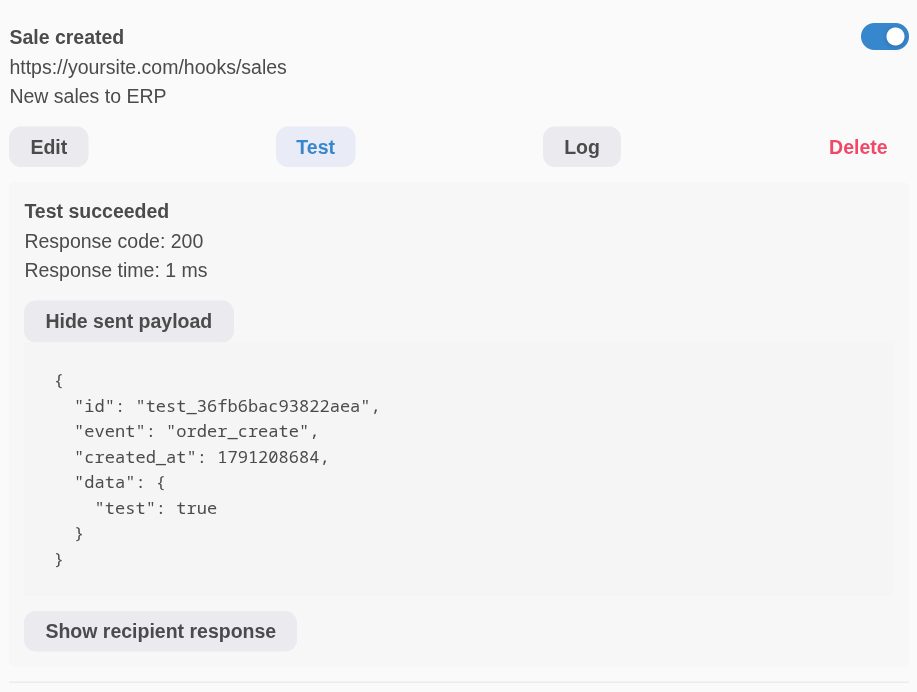
The result shows the exact status your endpoint returned, the response time and the body we sent.
Fix your receiver until you see "ok": true (Test succeeded in the interface).
5. Go live
- Confirm your receiver verifies the signature and returns
2xxquickly. - Watch the delivery journal: Log next to the subscription,
or
GET /webhooks/deliveries. Failed deliveries are retried automatically. - Deduplicate on
X-GP-Delivery— deliveries are at-least-once.
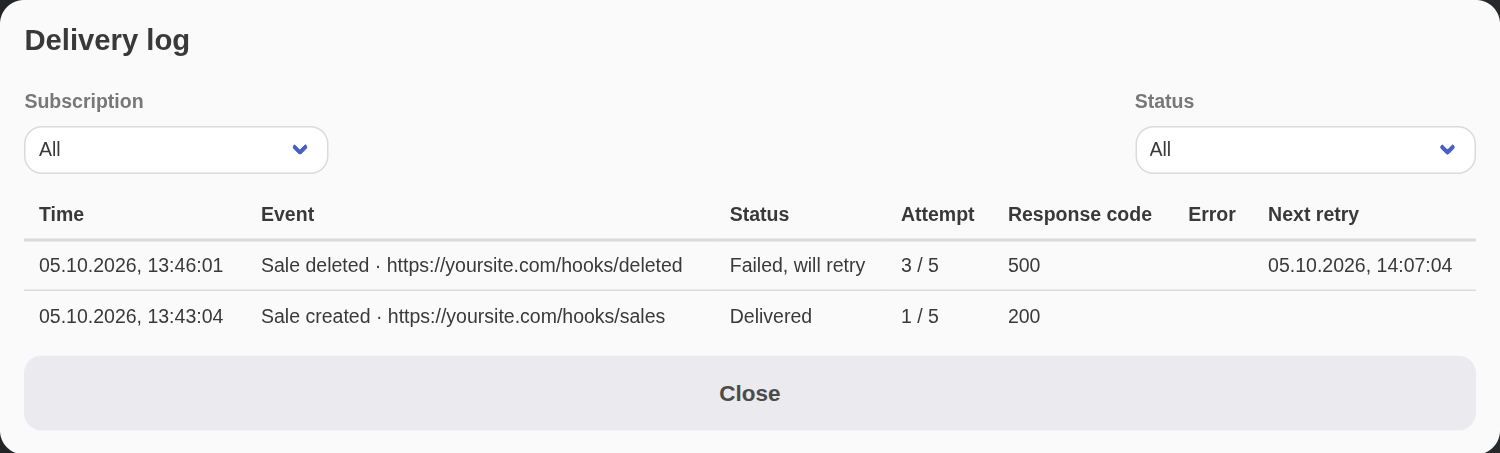
That's it — your integration now receives real-time events and can read/write through the API.